Bank sync
Setting up bank sync
Connect your bank, review synced transactions into envelopes, and teach Hearth your habits. Plus when to sync, and when to stay manual.
In short: connect your bank through Plaid, and new transactions land in a shared review inbox with a suggested envelope. Nothing touches your budget until you confirm it. Part of Hearth Premium.
Should you sync yet?
Still getting spending under control? Stay manual for now. The small friction of typing purchases in is what builds awareness (why manual first).
Bank sync is a graduation, not a starting point. It's for when budgeting has become maintenance and you just want the typing to stop.
Heads up: bank sync is part of Hearth Premium. Your nest can connect up to 3 banks, and any member can link one once the nest has Premium.
Connecting your bank
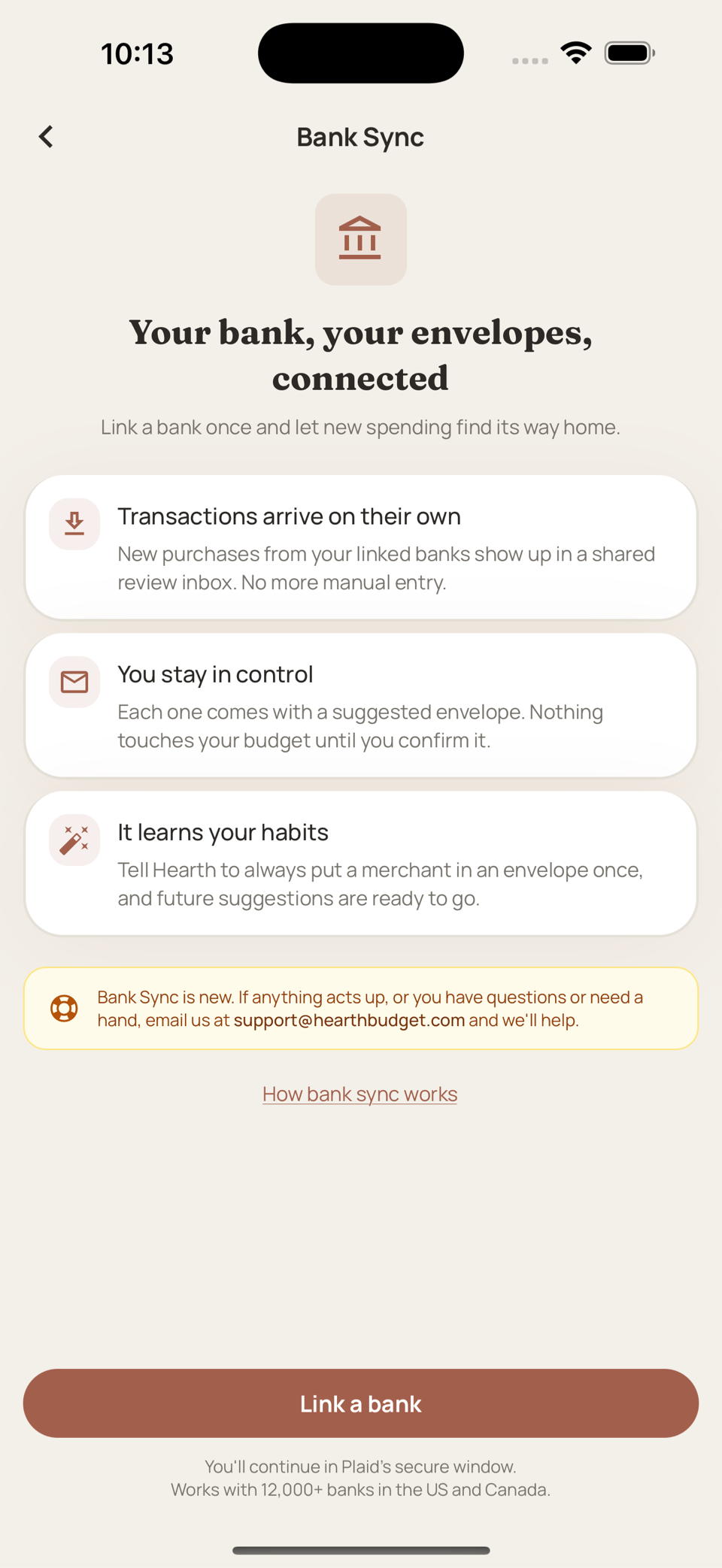
- Go to Settings and tap Linked Banks under Budget Tools
- Tap Link a bank
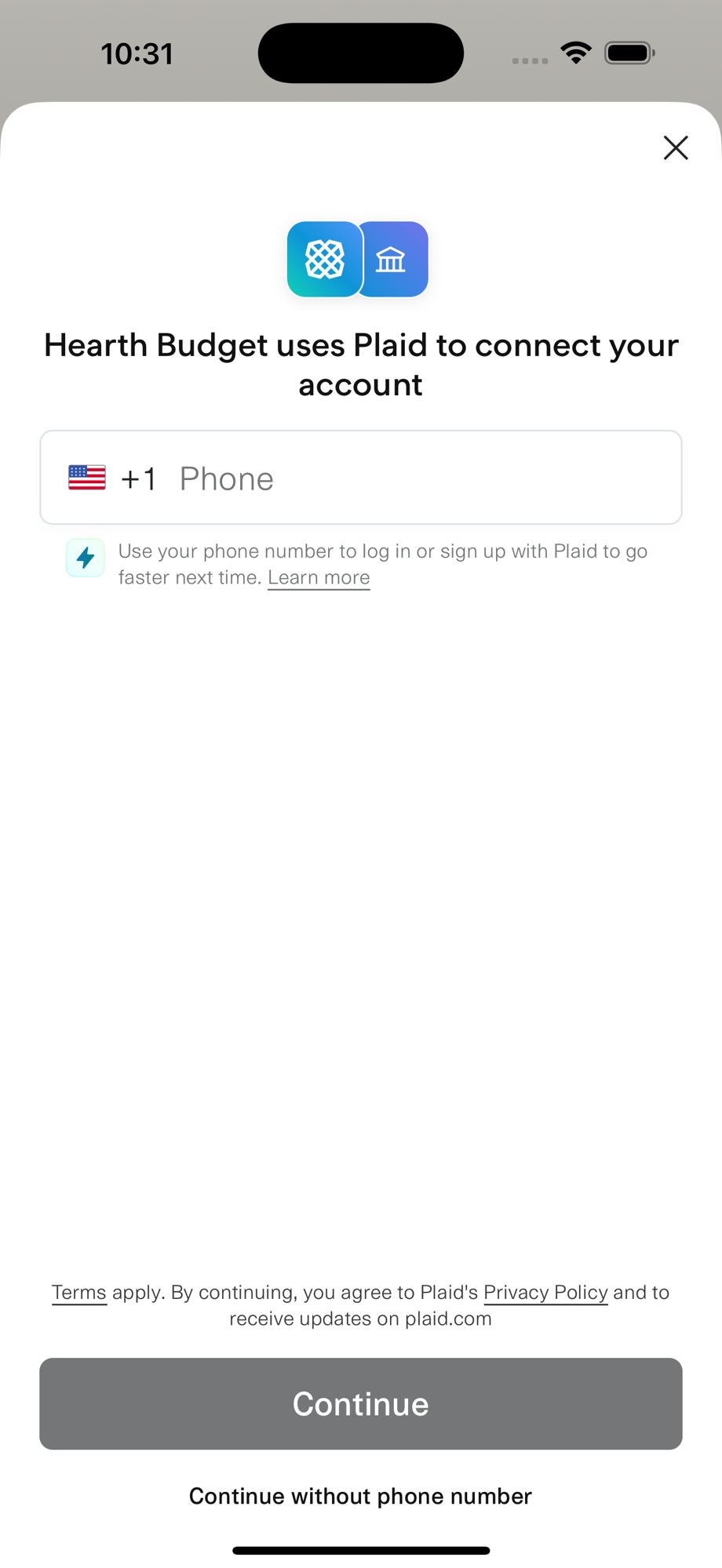
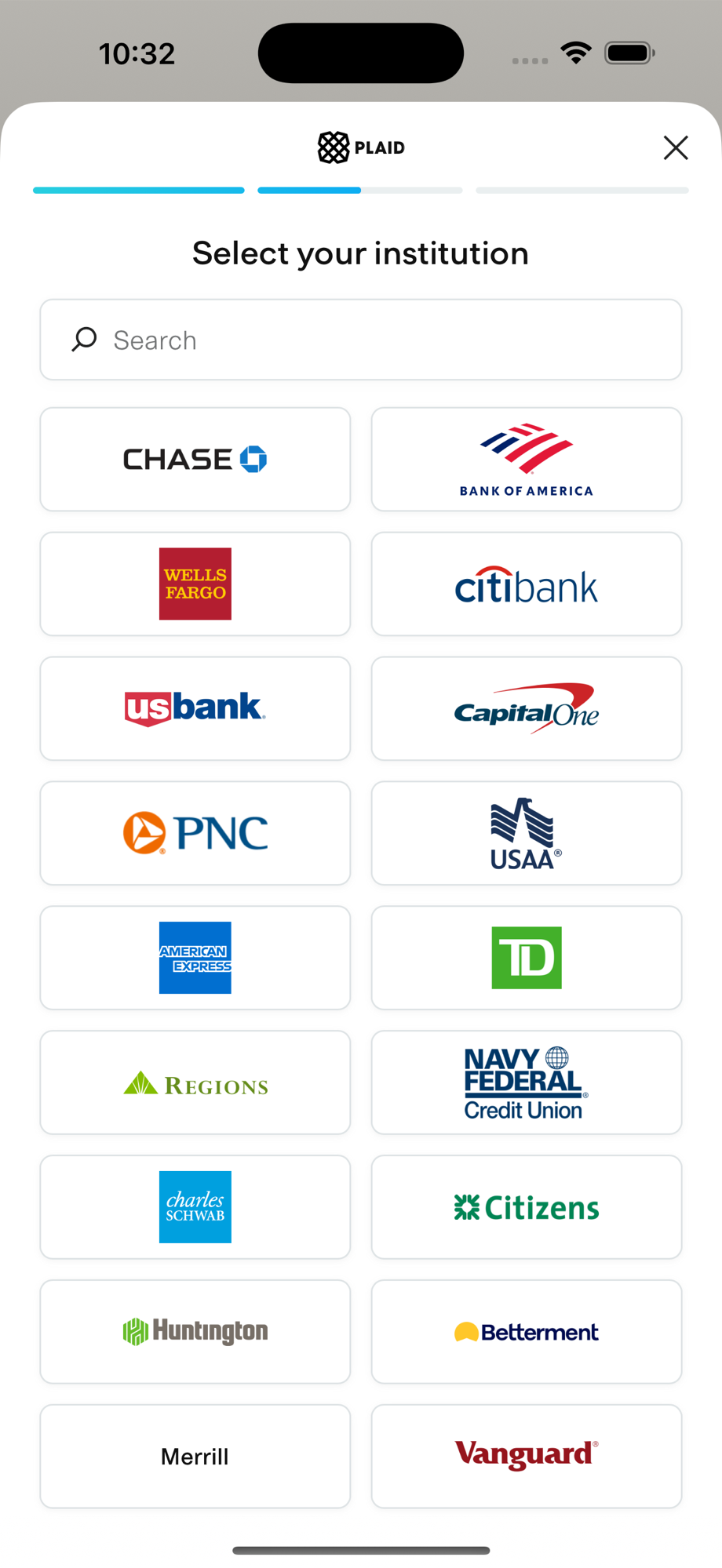
- Pick your bank from the Plaid list, the same service behind most finance apps
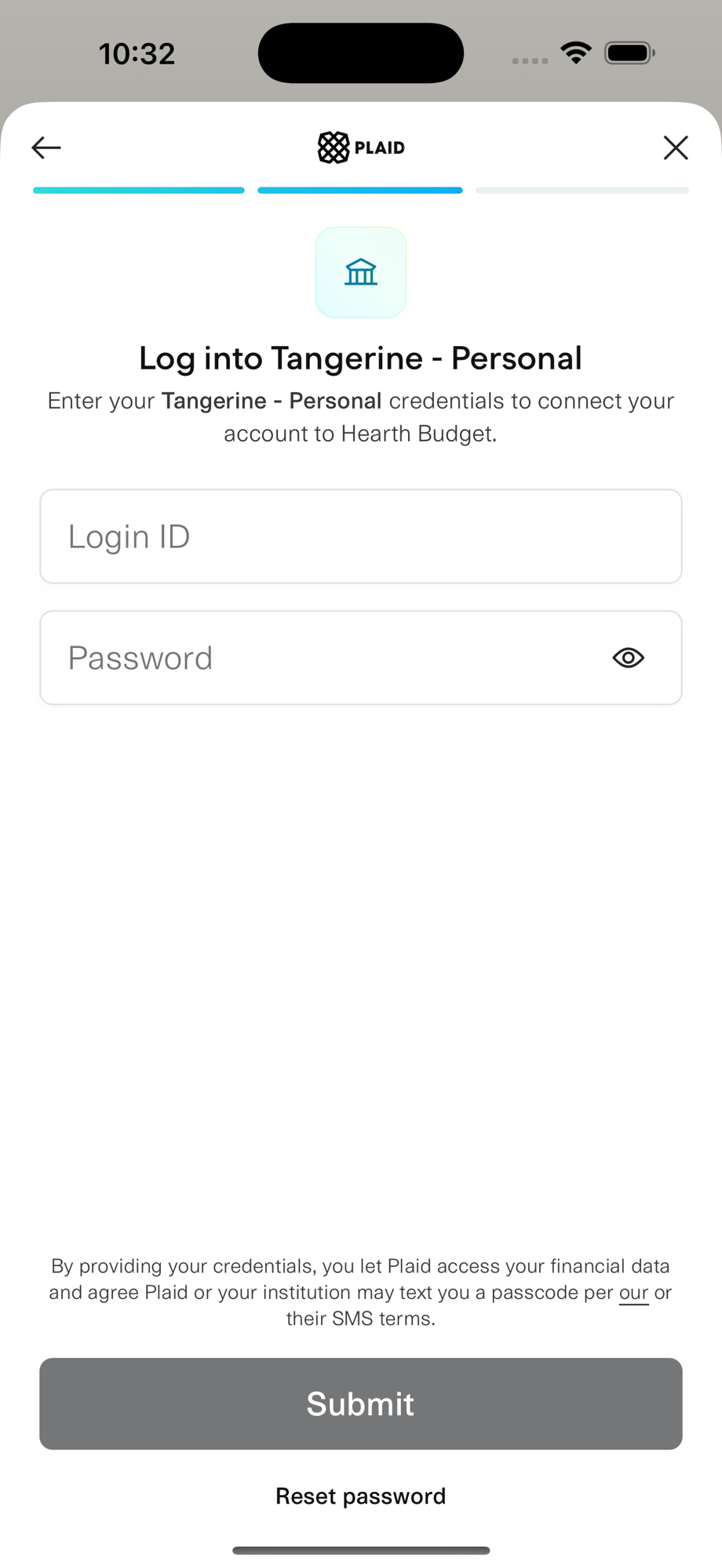
- Log in on your bank's own screen. The whole thing takes about a minute.
Your bank credentials never pass through Hearth's servers.
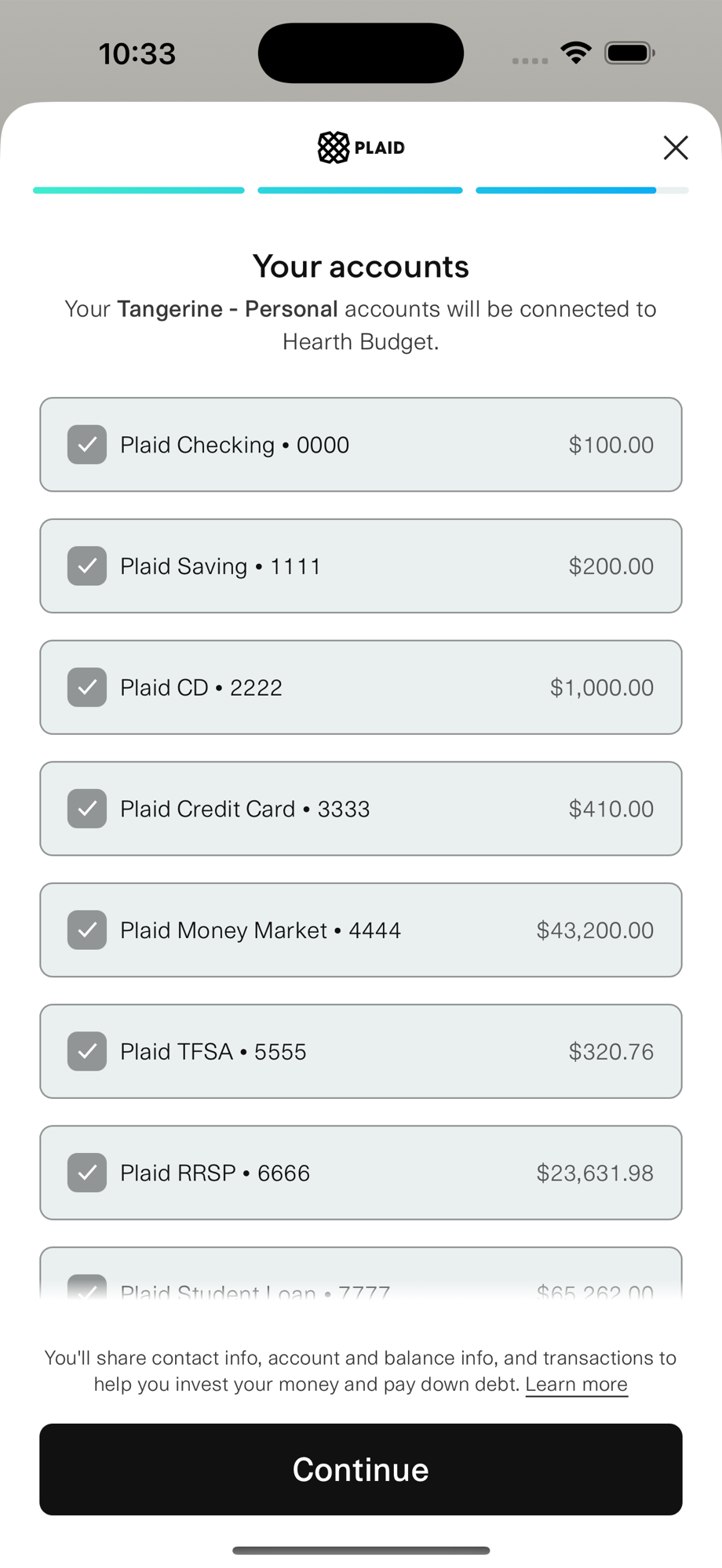
Here's the whole Plaid flow, shown with a demo bank account. Swipe through:
Choose what Hearth watches
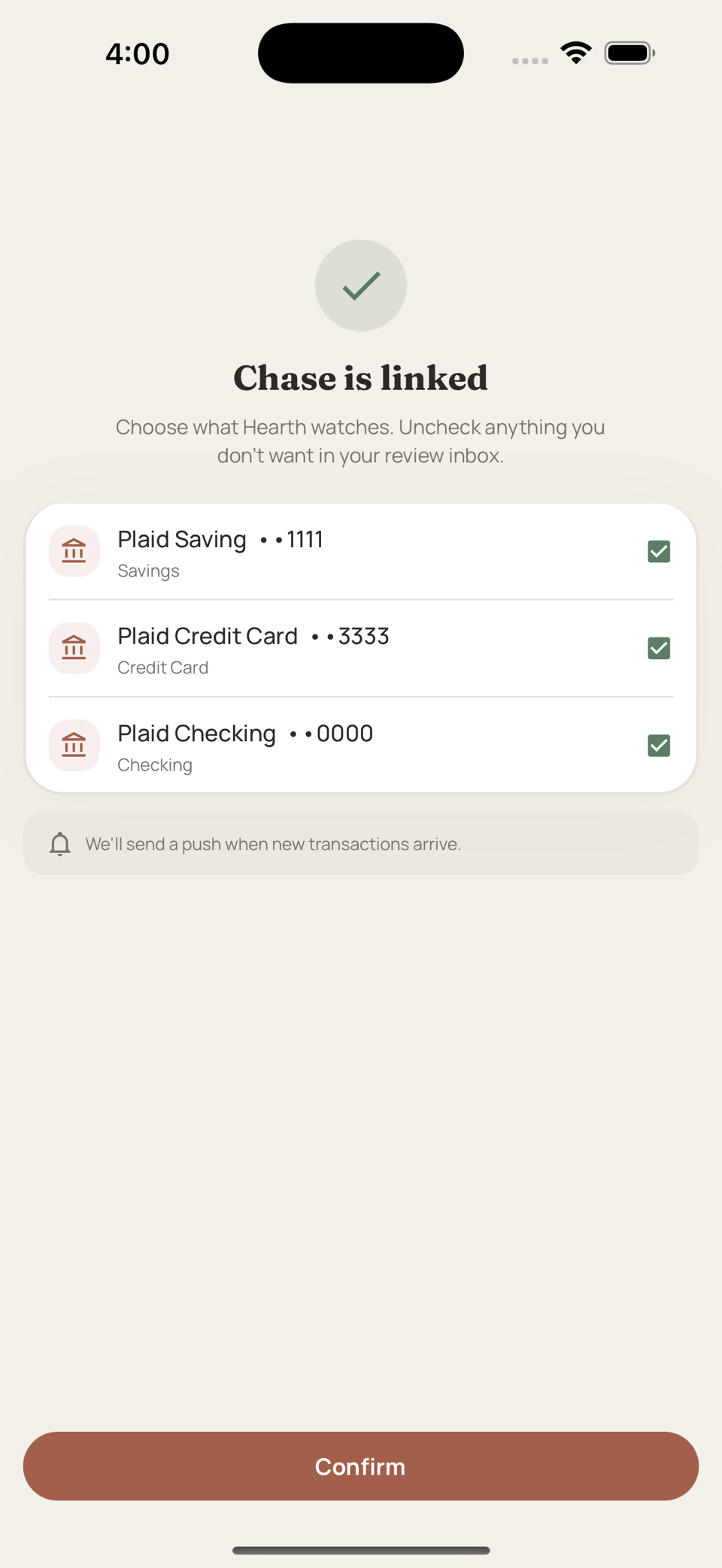
Some banks share every account under your login, including ones you'd never budget from. After linking, Hearth shows you the list:
- Uncheck anything you don't want in your review inbox
- Change your mind anytime. Every account has a sync toggle in Linked Banks, no relinking needed.
The review inbox
Two ways to get there:
- From the dashboard: a card appears whenever transactions are waiting

- From the Activity tab: tap Review in the top corner

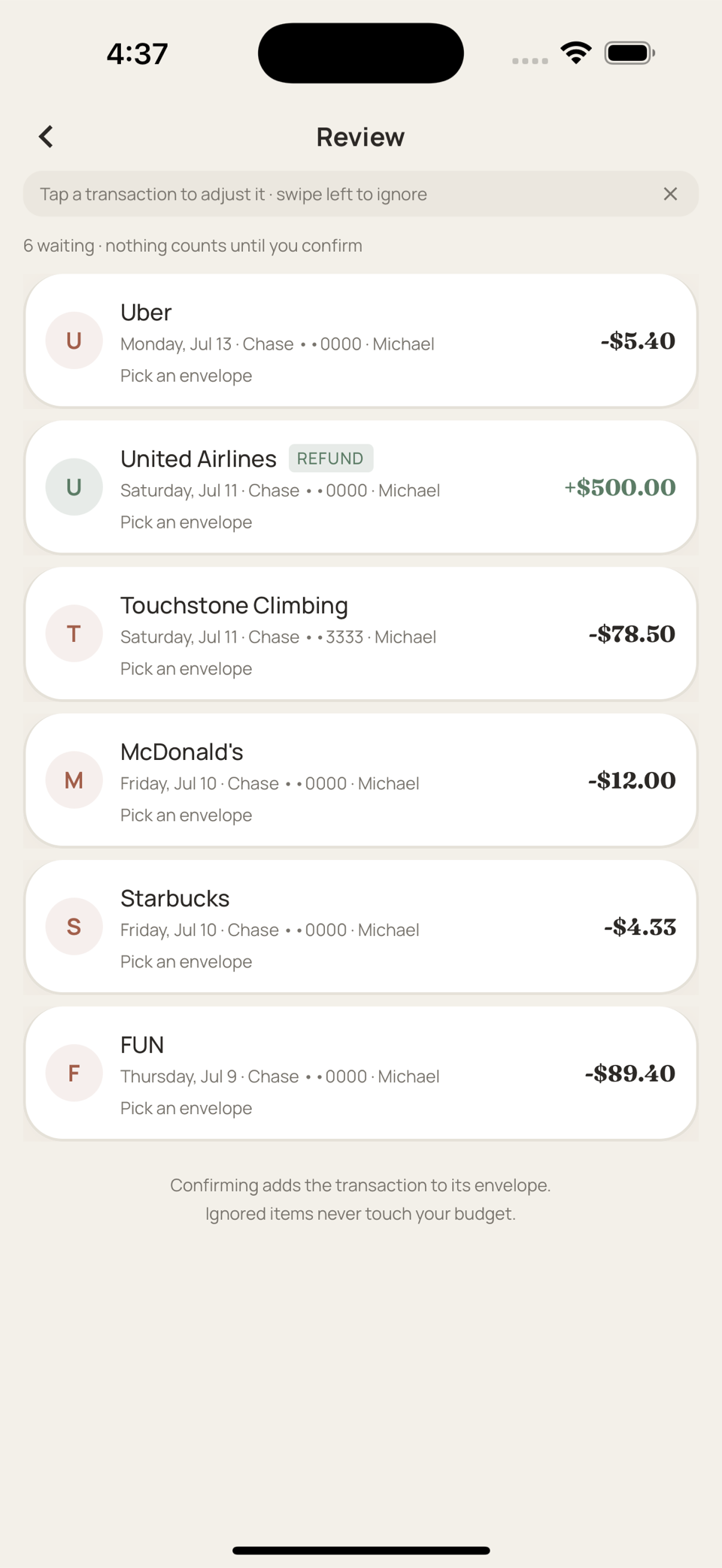
Synced transactions don't touch your budget when they arrive. They wait in a shared inbox, each with a suggested envelope, until someone confirms them.
- Confirm places it in an envelope and adjusts the balance, just like a manual entry
- Split one purchase across several envelopes, like a Walmart run that's half groceries, half household
- Ignore removes it without touching your budget. Right for reimbursements and anything that isn't real spending.
- Either partner can review. Whoever gets there first clears it.
Teaching Hearth your habits
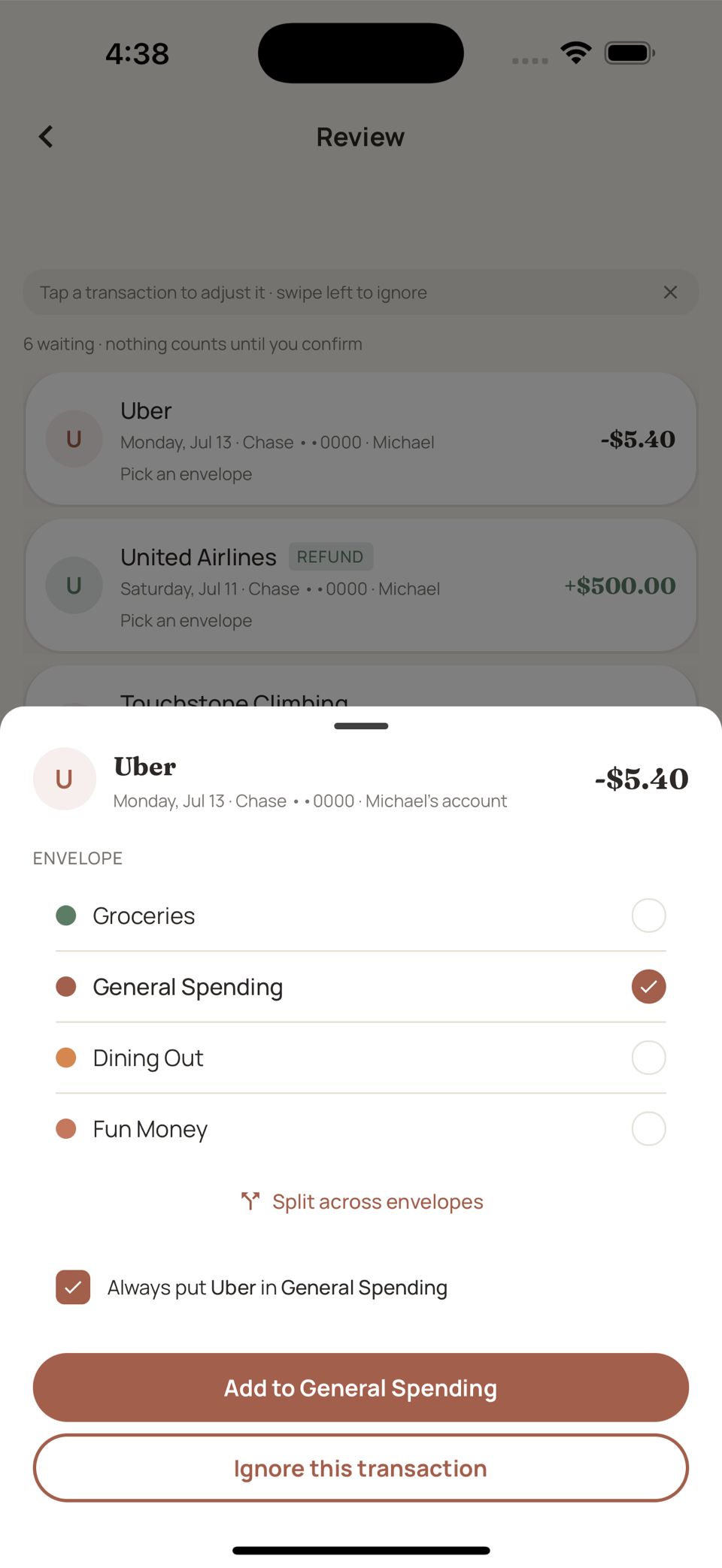
When confirming, you can create a rule: always put this merchant in this envelope.
Next sync, that merchant arrives with the right envelope already picked. You still confirm it. There's just nothing left to figure out.
Rules live on the bank sync screen. Remove one anytime a merchant's pattern changes.
If a bank disconnects
Banks occasionally ask you to log in again. That's them, not you.
You'll see a reconnect prompt on the bank sync screen. Tap it and sign back in. Nothing is lost while disconnected; transactions catch up in your inbox afterward.
Security and privacy
- Read-only. Hearth can see transactions but can never move money or make payments.
- Your login goes to your bank, through Plaid. It never touches Hearth's servers. We simply don't have it.
- Disconnect anytime from the bank sync screen. Confirmed transactions stay in your budget; the link to your bank is gone immediately.
More guides
Still stuck? We're happy to help. Email support@hearthbudget.com.